Why a VPS, and why Vultr
Shared hosts cap PHP execution time, usually 30 to 60 seconds, and will not lift it. For a brochure site that is fine. For PageMotor with AI plugins, ecommerce, or a busy contact form, that cap becomes a ceiling the plugin keeps hitting.
A plugin waiting on an AI API response can easily spend more than a minute on one request. Shared hosting kills the process halfway through. On a VPS the timeouts are yours to set.
The April 2026 test rig
We set up a three-way rig across Vultr (New Jersey), DigitalOcean (New York) and Linode (Newark). Same PageMotor version, same plugins, same scenario on each. In this run, Vultr led on every metric we measured, and on price.
| What | Vultr | DigitalOcean | Linode |
|---|---|---|---|
| Sequential disk write | 2,930 MB/s | 1,223 MB/s | 587 MB/s |
| Random 4K IOPS | 139,264 | 68,894 | 94,856 |
| PHP benchmark | 0.076s | 0.211s | 0.154s |
| 500 DB inserts | 1,484ms | 5,445ms | 4,233ms |
| Anthropic API latency* | 23.8ms | 45.5ms | 35.8ms |
| Full pipeline time | 7m 17s | 10m 38s | 7m 58s |
| Monthly cost | $60 | $63 | $72 |
For PageMotor specifically, three numbers matter most. DB inserts, because the admin is database-heavy. Disk IOPS, because the page cache, CSS compiler and uploads all hit the disk constantly. API latency, because AI plugins round-trip to Anthropic dozens of times per session.
Pick your plan
Vultr charges the same USD price in every data centre bar one, so location almost never changes the bill. Only the plan does. Tap what you are running:
Estimate the cost per site
Full reference
| Profile | Plan | Specs | Price |
|---|---|---|---|
| Solo, 1-2 sites | High Performance | 1 vCPU / 2 GB / 50 GB | $12/mo |
| Solo with AI plugins | High Performance | 2 vCPU / 4 GB / 100 GB | $24/mo |
| SME, one busy site | High Performance | 2 vCPU / 4 GB / 100 GB | $24/mo |
| SME, heavy traffic | High Performance | 4 vCPU / 8 GB / 180 GB | $48/mo |
| Agency, 50-100 sites | VX1 | 2 vCPU / 8 GB / 120 GB | $55.48/mo |
| Agency, 100-200 sites | VX1 | 4 vCPU / 16 GB / 240 GB | $111.69/mo |
Auto Backups add 20 per cent to whichever plan you pick. On production, enable them.
Plans, prices and specifications above re-verified on 29 August 2026 against Vultr's public plans API (api.vultr.com/v2/plans), which is the same catalogue the console deploys from. Vultr changes plans regularly, so cross-check before signing up.
Pick a region
Same price everywhere except São Paulo, which carries a 50 per cent surcharge. Otherwise latency is the only thing that changes, so pick the closest Vultr data centre to your visitors, not yourself.
Vultr has 36 regions as of August 2026, across every populated continent: 14 in North America, 9 in Europe, 8 in Asia, 2 each in Australia and South America, and Johannesburg. There is almost always one within 100 ms of your audience.
What to tick on the Vultr signup screen
Once you have signed up and are inside the Vultr console, click Compute in the left sidebar, then Instances, then Create Instance.
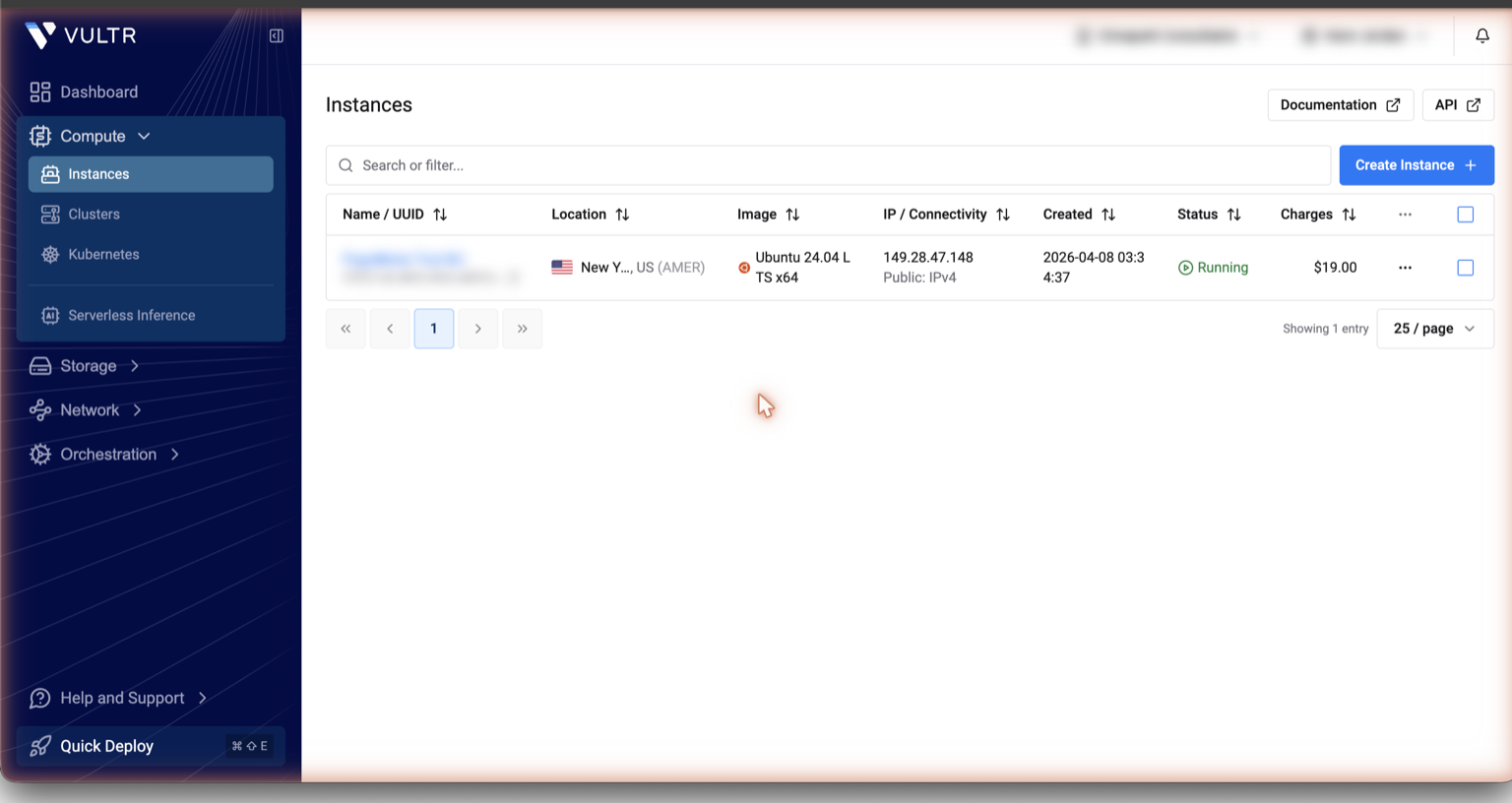
Step 1: Choose Type — select Shared CPU
On the Deploy a Server screen, choose Shared CPU. It is the right shape for a PageMotor host at all but the very largest scale.
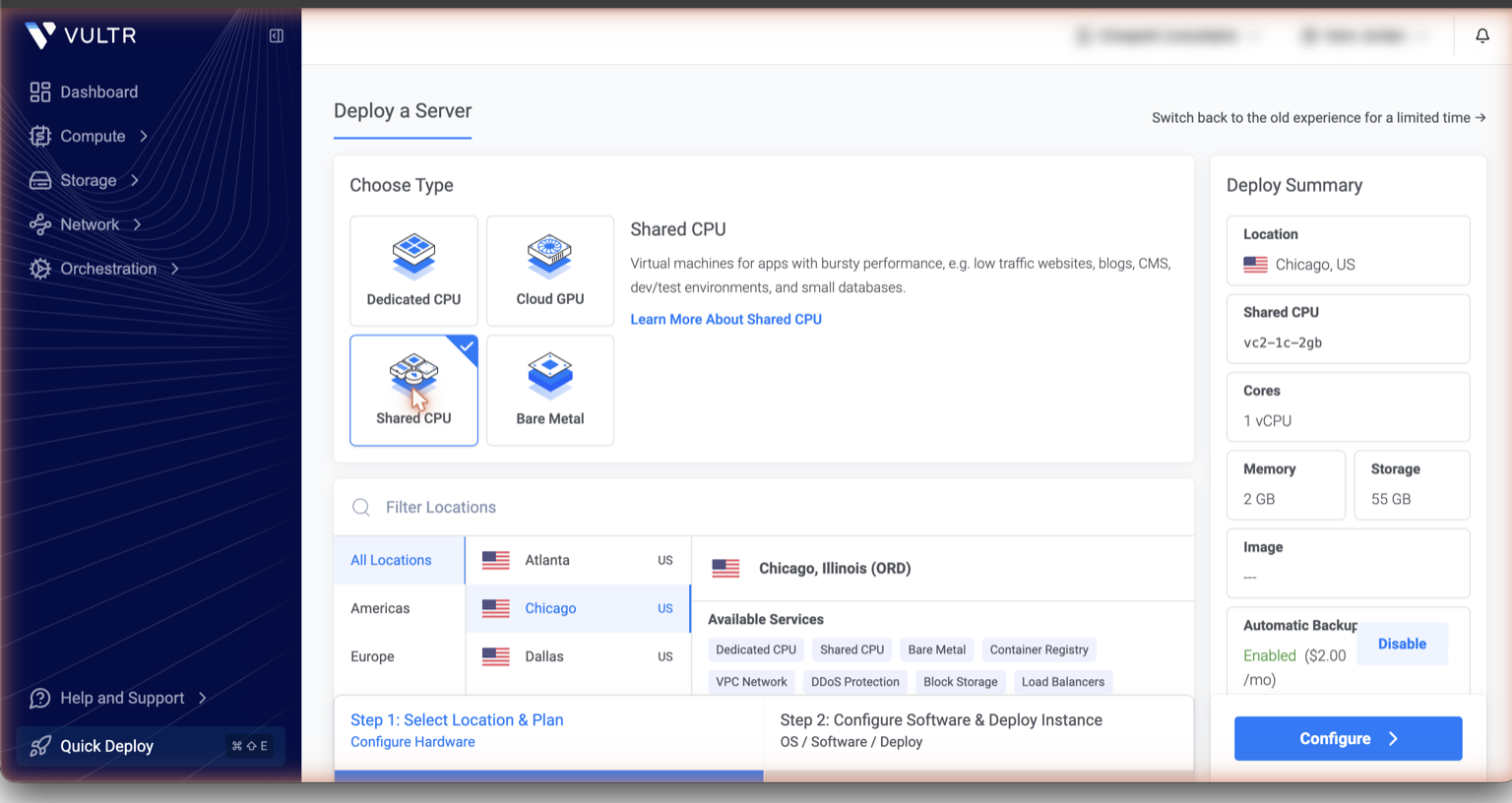
Step 2: Location and Plan
Filter to Europe and pick London (or the region closest to your visitors). In the plan table below, select vc2-1c-2gb ($10/mo) to start — you can resize up later with no reinstall.
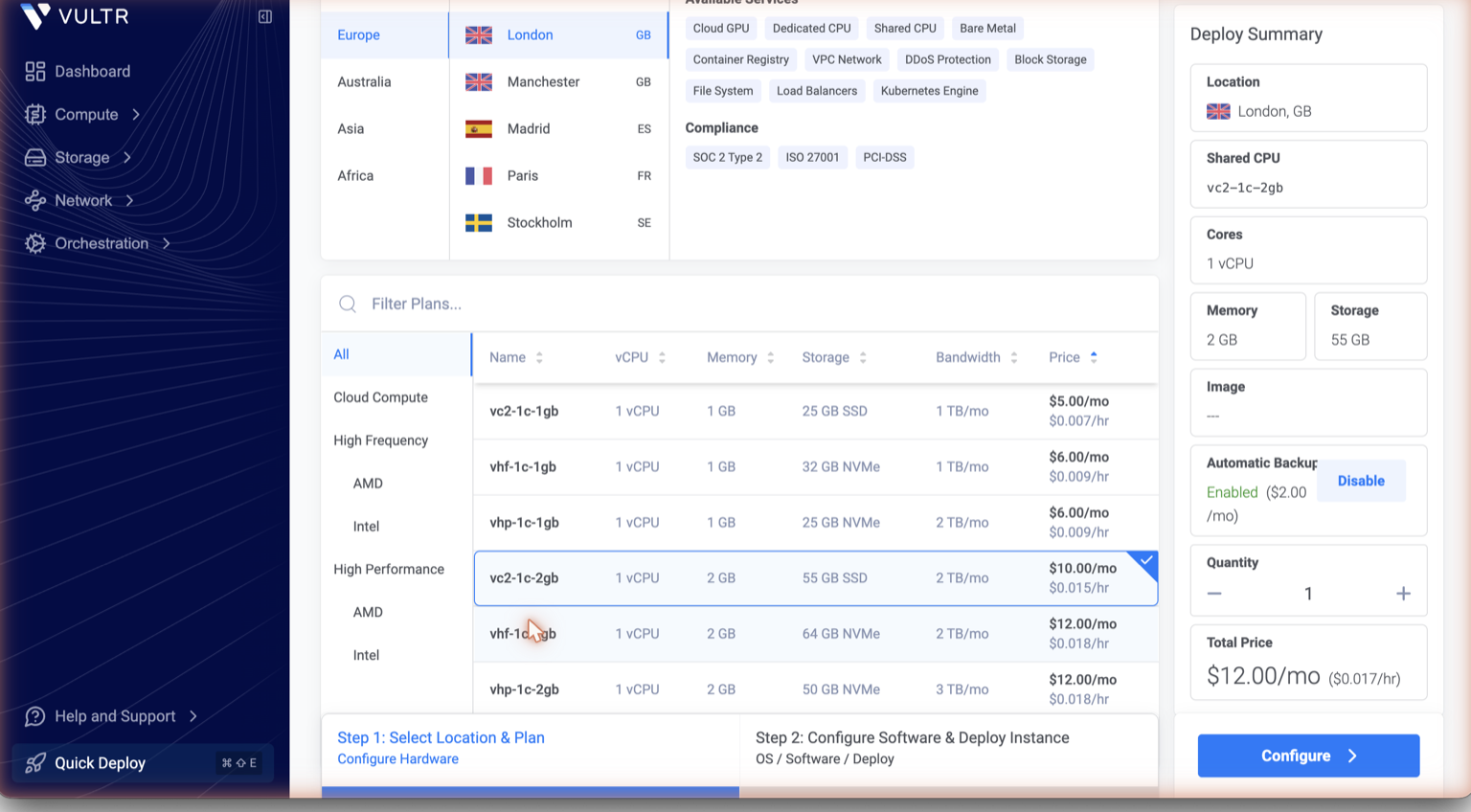
Step 3: OS, SSH Keys, and Backups
Click Configure to move to Step 2. Select Ubuntu as the OS and choose the latest LTS version from the Image Version dropdown. Then paste your SSH public key into the SSH Keys field — this is the most important security step.
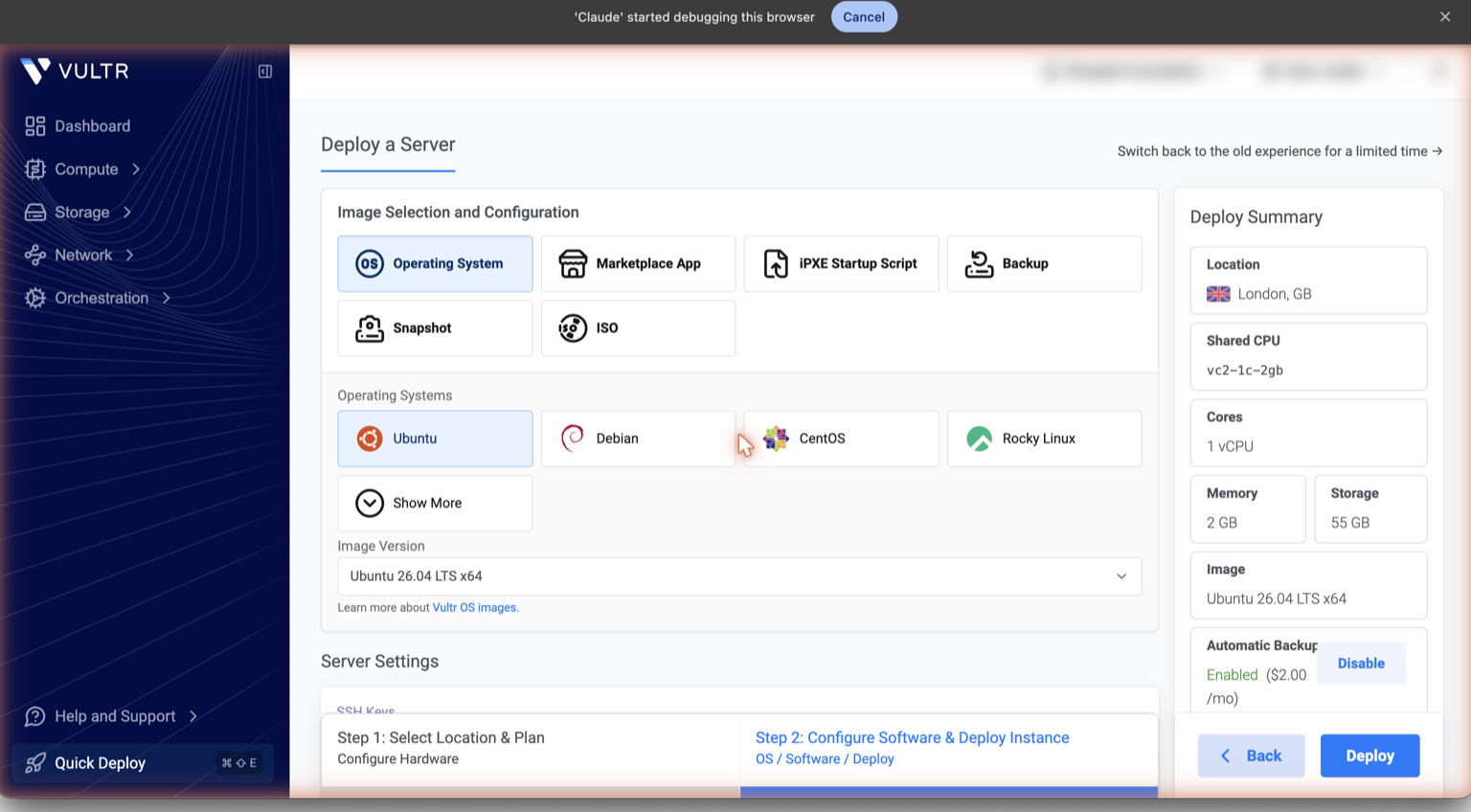
Full settings reference
| Setting | Pick | Why |
|---|---|---|
| Server type | Shared CPU | Right shape for a PageMotor host at all but the very largest scale. |
| Location | Closest to visitors | Same price everywhere bar São Paulo (+50%). Pick by audience latency. |
| Plan | vc2-1c-2gb ($10/mo) to start | Handles a typical PageMotor site; resize up later without reinstalling. |
| Image | Ubuntu 24.04 LTS | Ships PHP 8.3, which is what every command below installs. Supported to 2029. Not “latest LTS” — see the note under this table. |
| Auto Backups | Enable for production | 20 per cent on top of plan price. Skip for a pure test rig. |
| SSH Keys | ed25519, before first boot | The most important security click on the page. |
| Hostname | Descriptive, e.g. pm-prod-01 | Readable in logs and the dashboard. |
| Everything else | Default | No startup script, no VPC, no DDoS add-on at this scale. |
apt install php8.3-* command in this guide fails on it, because those packages are not in 26.04's repositories, and PageMotor is not yet verified against PHP 8.5. 24.04 LTS is supported until 2029 and is what our own production boxes run, so it is the safe pick today. If you deliberately want 26.04, expect to substitute php8.5-* throughout and to test PageMotor yourself first.No ed25519 key yet? Generate one on your Mac with ssh-keygen -t ed25519, then paste the public key (~/.ssh/id_ed25519.pub) into Vultr's SSH Keys section before launching.
Let Claude Code do the heavy lifting
This guide recommends a complete, Claude-Code-driven stack: Vultr for the server, Cloudflare for DNS, Mailgun for email. You say what you want; Claude Code provisions the box over SSH, manages DNS through Cloudflare's API, and configures email through the EP Mailgun plugins.
If "bash commands" and "edit the Nginx vhost" made your eyes glaze over, you are the reason this section exists. Claude Code is a command-line tool from Anthropic that SSHes into your Vultr box, runs every command in this guide, and explains each step in plain English as it goes. You do not need to understand the commands. You need to know what you want: PageMotor running at your domain, with SSL, on a fresh box.
What Claude Code does for you
- Runs every
apt install, config edit,chmodandsystemctlcommand - Shows you each command before running it
- Checks each step's output, stops on errors, asks before retrying
- Reads this guide as the reference, so the box matches the docs
- Never deletes anything without asking first
- Uses British English and plain language
What it will NOT do automatically
- Create your Vultr account (you sign up as a human)
- Provision the VPS (you click through Vultr's screen)
- Point DNS at the new IP (you edit your domain's DNS)
- Create your admin account (you register at
/admin/) - Install EP plugins in the same unattended run (a quick second prompt)
The first four cross a human-authorisation line: money, identity, DNS ownership, admin rights.
Before Claude Code takes over: 7 manual steps
- Buy a domain if you do not have one. Any registrar works; we recommend Cloudflare (free DNS, wholesale renewals, Claude-Code-manageable). Full setup is in the Cloudflare DNS guide. You need to be able to edit the DNS A record.
- Install Claude Code on your Mac from claude.com/claude-code. Free to install; you pay only for Anthropic API usage, a few pence for this setup.
- Generate an SSH key, one time ever:
ssh-keygen -t ed25519, then press Enter three times. Your public key is at~/.ssh/id_ed25519.pub. - Sign up for Vultr and provision the VPS via our referral link ($300 credit). Use the choices in the "Sign up" tab. Paste your SSH public key (
cat ~/.ssh/id_ed25519.pub | pbcopy) into the SSH Keys field during signup. - Note the VPS IP address once provisioning finishes (30 to 60 seconds). You need it for the next step and the prompt.
- Point your domain's A record at the VPS IP. Set it DNS only (grey cloud) if on Cloudflare, so certbot can issue SSL without obstruction. Quick check:
dig yoursite.com +shortshould return the VPS IP. Claude Code can do this for you if it has Cloudflare API access. - Download the current PageMotor core ZIP from the forum download area, unzip to somewhere easy like
~/Downloads/pagemotor/, and note the path. It should containpagemotor.php,index.php,lib/,config-sample.phpandlicense.txt.
The prompt (copy, paste, edit three lines)
Open Claude Code in Terminal, paste this, edit the three bracketed placeholders, then hit Enter and watch it run.
I have a fresh Ubuntu 24.04 VPS at [VPS_IP_FROM_VULTR].
I can SSH as root using my ed25519 key at ~/.ssh/id_ed25519.

My domain is [yoursite.com]. The A record already points at the VPS IP.

My PageMotor core files are in [~/Downloads/pagemotor/].
The folder contains pagemotor.php, index.php, lib/, config-sample.php, license.txt.

Please follow the "From empty box to live PageMotor" procedure at
https://documentation.elmspark.com/hosting/vultr/

Do this end-to-end:
1. Bootstrap the server (nginx, PHP 8.3 FPM with required extensions,
   MariaDB, certbot, fail2ban, UFW allowing only 22/80/443, and
   unattended-upgrades for automatic security patches)
2. Configure a fail2ban [sshd] jail and confirm it is active
3. Run mysql_secure_installation (set root auth, remove anonymous users
   and the test database, disallow remote root) and confirm MariaDB
   listens only on localhost
4. Configure MariaDB to default to utf8mb4
5. At an interactive mariadb prompt (never put the DB password on the
   shell command line), create the database and a dedicated DB user
   scoped to it
6. Upload my PageMotor core to /var/www/mysite on the VPS,
   create user-content subfolders, set ownership to www-data,
   755 directories / 644 files (no 777 or 775; www-data owns the tree)
7. Write config.php with my four database constants:
   DB_NAME, DB_USER, DB_PASSWORD and DB_HOST (localhost). Leave the rest blank.
8. Create the Nginx vhost with fastcgi_read_timeout 600,
   client_max_body_size 64M, and the /lib/ php denial rule
9. Set PHP max_execution_time to 300 and memory_limit to 256M
10. Run certbot --nginx for SSL, then verify renewal with
    certbot renew --dry-run and confirm the certbot timer is active
11. Verify the Nginx config is valid and services are running
12. Hit the homepage once with curl to trigger PageMotor's first-load
    table creation
13. Confirm the tables exist in the database

Stop after step 13. Do NOT register an admin account. Do NOT install
EP plugins. I will register via /admin/ in a browser, then ask you to
install plugins as a separate next task.

Rules:
- Tell me what you are about to do before doing it
- Show me the output of each step
- Stop on any error and ask me before continuing
- British English (organise, behaviour, colour)
- No em dashes in any file you write. Use commas or full stops.
- Ask before anything destructive
What to edit: [VPS_IP_FROM_VULTR] with your VPS IP; [yoursite.com] with your domain (appears twice); [~/Downloads/pagemotor/] with the path where you unzipped the core.
After the prompt finishes
- Open
https://yoursite.com/admin/in your browser. - Register your first account. Whoever registers first becomes the administrator.
- Come back to Claude Code and paste the plugins prompt below.
Please install EP Email, EP Newsletter, EP Email Mailgun, EP Newsletter Mailgun,
EP GDPR, EP Password Reset, EP Diagnostics and EP Assistant on yoursite.com.
Then configure EP Email to send through Mailgun: set the Email Transport to
Mailgun EU (api.eu.mailgun.net, GDPR-clean routing) using my Mailgun sending
key [paste-sending-key] and sending domain mg.yoursite.com.mg.yoursite.com with its SPF and DKIM records. See the Email tab, or the dedicated Mailgun setup guide.From empty box to live PageMotor, by hand
Using the Claude Code prompt? You can skip this. This documents the exact sequence Claude Code runs, kept here for transparency and for anyone who prefers to do it themselves. About 30 minutes once DNS has propagated.
1. Bootstrap the server
SSH in as root using your ed25519 key.
apt update && apt upgrade -y
apt install -y nginx php8.3-fpm php8.3-mysql php8.3-curl php8.3-gd \
  php8.3-mbstring php8.3-xml php8.3-zip php8.3-intl php8.3-bcmath \
  php8.3-opcache mariadb-server certbot python3-certbot-nginx \
  fail2ban ufw unattended-upgrades unzip

# Confirm PageMotor's required PHP extensions
php -m | grep -iE 'mysqli|mbstring|curl|zip|fileinfo|openssl'

# Turn on automatic security updates
dpkg-reconfigure -plow unattended-upgrades

ufw allow OpenSSH
ufw allow 'Nginx Full'
ufw enable
This leaves only ports 22, 80 and 443 open. Fail2ban installs inactive, so enable an SSH jail:
cat > /etc/fail2ban/jail.local <<'EOF'
[sshd]
enabled = true
maxretry = 5
bantime = 1h
EOF
systemctl enable --now fail2ban
fail2ban-client status sshd
2. Make MariaDB speak utf8mb4 by default
Without this, emojis land in the database as ?. Create /etc/mysql/conf.d/utf8mb4.cnf:
[mysqld]
character-set-server = utf8mb4
collation-server = utf8mb4_unicode_ci

[client]
default-character-set = utf8mb4
Then systemctl restart mariadb.
3. Harden MariaDB, then create the database
Run mysql_secure_installation: set or confirm root authentication, remove anonymous users, disallow remote root, drop the test database. Ubuntu 24.04's MariaDB already listens only on localhost. Then create a scoped database and user at an interactive prompt so the password never lands in shell history:
mariadb -u root -pCREATE DATABASE mysite_pm CHARACTER SET utf8mb4 COLLATE utf8mb4_unicode_ci;
CREATE USER 'mysite_db'@'localhost' IDENTIFIED BY 'your-strong-password';
GRANT ALL ON mysite_pm.* TO 'mysite_db'@'localhost';
FLUSH PRIVILEGES;
EXIT;Use a dedicated user scoped to this database only. Never put root credentials in config.php.
4. Drop PageMotor into place
mkdir -p /var/www/mysite
cd /var/www/mysite
# Copy pagemotor.php, index.php and lib/ from your local core
mkdir -p user-content/{themes,plugins,images,uploads,css,tmp,logs}
Copy config-sample.php to config.php and fill in the four database constants: DB_NAME, DB_USER, DB_PASSWORD and DB_HOST (stays localhost). Leave the rest at their defaults; PageMotor uses utf8mb4 automatically.
chown -R www-data:www-data /var/www/mysite
find /var/www/mysite -type d -exec chmod 755 {} \;
find /var/www/mysite -type f -exec chmod 644 {} \;
# setgid so files created later keep the www-data group
find /var/www/mysite/user-content -type d -exec chmod g+s {} \;
5. The Nginx vhost
Create /etc/nginx/sites-available/mysite:
server {
    listen 80;
    server_name yoursite.com;
    root /var/www/mysite;
    index index.php index.html;

    fastcgi_read_timeout 600;
    proxy_read_timeout 600;
    send_timeout 600;
    client_max_body_size 64M;

    add_header X-Content-Type-Options nosniff;
    add_header X-Frame-Options SAMEORIGIN;

    location / { try_files $uri $uri/ /index.php?$query_string; }
    location ~ \.php$ {
        include snippets/fastcgi-php.conf;
        fastcgi_pass unix:/run/php/php8.3-fpm.sock;
        fastcgi_read_timeout 600;
    }
    location ~ ^/lib/.*\.(js|css|woff|woff2|ttf|eot|svg|png|jpg|gif)$ {
        try_files $uri =404;
    }
    location ~ ^/lib/.*\.php$ { deny all; }
    location ~ /\.(ht|git|env) { deny all; }
}ln -s /etc/nginx/sites-available/mysite /etc/nginx/sites-enabled/
nginx -t && systemctl reload nginxfastcgi_read_timeout 600 is the critical line. Nginx defaults to 60 seconds, which any AI plugin will blow through.
6. PHP settings that match Nginx
Edit /etc/php/8.3/fpm/php.ini:
max_execution_time = 300
memory_limit = 256M
upload_max_filesize = 64M
post_max_size = 64M
systemctl reload php8.3-fpm. PHP timeout shorter than Nginx means surprise 504s; longer means processes running past when Nginx gave up. Keep them aligned. On the $12 / 2 GB plan, cap php-fpm pm.max_children and add a small swap file so a burst of AI calls cannot take the box down.
7. SSL with Certbot
With your A record pointing at the Vultr IP and DNS propagated:
certbot --nginx -d yoursite.com
systemctl list-timers | grep certbot
certbot renew --dry-runhttps:// links. Turn the orange proxy on only after the cert is live, and set SSL/TLS mode to Full (strict). Never use Flexible: it talks to your origin over plain HTTP, making PageMotor emit http:// links and risk a redirect loop.8. First page load creates the tables
Load your domain in a browser. PageMotor's first front-end request auto-creates its database tables, so there is no SQL file to import. Then visit /admin/ to reach Admin Registration; the first account becomes the administrator.
Blank page here? PageMotor keeps PHP errors off the screen and writes them to /var/www/mysite/user-content/logs/php-errors.log. Read that file rather than turning display_errors on.
9. Install essential plugins
Through the admin, install and activate: EP Email, EP Newsletter, EP Email Mailgun, EP Newsletter Mailgun, EP GDPR, EP Password Reset, EP Diagnostics and EP Assistant. Configure EP Email to send through Mailgun (see the Email tab).
Settings people forget (and later regret)
fastcgi_read_timeout600 or higher. Default 60 kills AI plugins mid-call.max_execution_time = 300. Match PHP to Nginx or expect 504s.- MariaDB
character-set-server = utf8mb4. Without it, emojis corrupt silently. - UFW before anything else. A new server gets scanned within minutes.
- Run
mysql_secure_installation. A default install leaves an opentestdatabase and anonymous users. - Enable the fail2ban [sshd] jail. The package installs inactive.
- ed25519 keys, then harden login. Set
PasswordAuthentication noandPermitRootLogin prohibit-password, then reload ssh. unattended-upgradeson. A one-timeapt upgradeis not enough for a box that lives for years.- opcache on. Default on Ubuntu 24.04; verify with
php -m | grep -i opcache. 3 to 5 times the page speed for free.
Email: Mailgun (recommended)
Vultr gives you the box, not email, and it blocks outbound port 25, so traditional SMTP is out anyway. Mailgun is the production recommendation across both EP Email (transactional) and EP Newsletter (campaigns), via the EP Email Mailgun and EP Newsletter Mailgun driver plugins.
- The port-25 block does not matter. The drivers POST to Mailgun's HTTPS API on port 443, not SMTP.
- EU region for GDPR. Pick Mailgun EU (
api.eu.mailgun.net) for EU and UK audiences. The region is locked per domain for life, so choose it when you create the domain. North America picks Mailgun US (api.mailgun.net). - Free to start. 100 emails a day with one verified custom sending domain, no card.
mg.yourdomain.com in Mailgun, never yourdomain.com itself. Mailgun's MX records are for inbound mail only; on your apex they hijack delivery away from your existing mailbox and incoming mail silently stops. Sending needs only the SPF and DKIM records on mg..What to add in Cloudflare
For the mg.yourdomain.com subdomain, all set DNS only (grey cloud), never the orange proxy:
- One SPF TXT record at
mg.yourdomain.com - Two DKIM CNAME records at
pdk1._domainkey.mg…andpdk2._domainkey.mg… - One tracking CNAME at
email.mg… - The two MX records only if you want Mailgun to receive mail (you usually do not, and never on the apex)
For the full end-to-end walkthrough (signup, region, DNS, DKIM activation, sending key, inbox-placement verification), follow the dedicated Set up reliable email with Mailgun guide.
Who looks after this server?
You do. A Vultr VPS is self-managed, the same as every mainstream provider. Hostinger word it most plainly, and it holds across the board: “As our VPS solutions are self-managed, you will get full freedom to configure and manage the virtual server.”
Vultr looks after the hardware, the network, DDoS filtering at the edge, and whatever backups your plan includes. Everything from Ubuntu upwards is yours: security patches, your control panel, PHP, the database, your TLS certificate, and PageMotor itself.
That is not a catch. It is the same freedom that makes a VPS fix the problems shared hosting gives PageMotor. But nobody emails you when a patch is published, and a server left alone for a year is running a year of known, catalogued, publicly indexed vulnerabilities. Budget about fifteen minutes a month.