Installing PageMotor on GoDaddy
A plain-English walkthrough for GoDaddy's cPanel Web Hosting. About ten minutes, and you do not need to be technical.
Not on GoDaddy? Everything in this guide is standard cPanel, so the steps are nearly identical on any cPanel host. We also have this guide for Bluehost and HostGator, and a different one for SiteGround (which does not use cPanel).
Use this guide with any AI assistant
Download it as a prompt file, paste it into Claude, ChatGPT, Gemini or any LLM, and it will walk you through every step interactively.
▶ The whole install in 4 minutes 22 seconds, narrated, with captions — including the product check to do before anything else, and the outbound SMTP block that is unique to GoDaddy.
Read the narration instead
The shape of it. The install itself is standard cPanel, about ten minutes. But GoDaddy differs from other hosts in three ways worth knowing before you start, and one of them decides whether you can install at all.
The product. PageMotor needs GoDaddy's Linux Web Hosting plan, the one whose dashboard shows a cPanel Admin button. Two popular GoDaddy products cannot run PageMotor at all: Websites + Marketing, their site builder, and Managed WordPress. Neither gives you cPanel or file access, so there is nowhere to put the files. Check that first, before anything else.
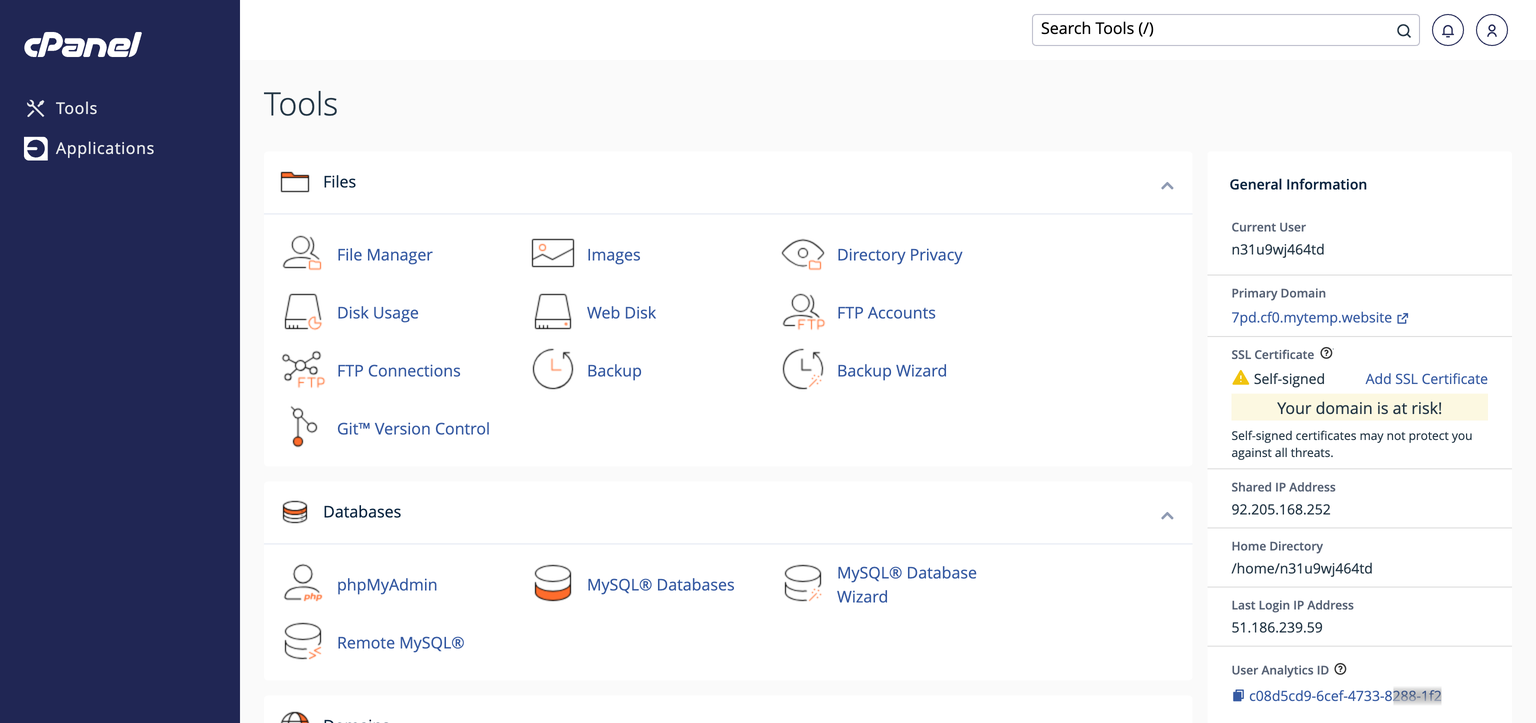
Upload and extract. Run the preflight check, then open cPanel › File Manager and the folder for your site, which for your main domain is public_html. Upload the PageMotor zip, right-click it and choose Extract. If Extract stalls partway, just run it again: GoDaddy's shared servers sometimes pause big jobs, and a retry normally finishes it.
The database. Use cPanel's MySQL Database Wizard, which does the whole job in one pass: name it, create the user, let the generator make the password, and on the last screen tick ALL PRIVILEGES. Here is the GoDaddy difference: unlike most cPanel hosts, GoDaddy usually shows the name exactly as you typed it, with no prefix added. But the name has to be unique across GoDaddy's whole system, so something plain like pagemotor may already be taken. Use something distinctive, and copy the final names exactly as the wizard shows them.
The rename. config-sample.php becomes exactly config.php, which is the step that switches PageMotor on, and you put your three values in. DB_HOST stays localhost. Ignore any older tutorial telling you to hunt for a special GoDaddy MySQL host name: that advice is for their long-retired legacy hosting.
Finish. Go straight to /admin/. On that first visit PageMotor sets itself up and walks you into creating your admin user. Open the admin before you open the front of the site.
Email is where GoDaddy differs. Its shared hosting blocks outbound SMTP to outside mail services, as a matter of policy. Mailgun, SendGrid, Brevo and the rest will simply time out, on every port, so the advice you see everywhere else — just point it at Mailgun — does not work here. The giveaway is the shape of the failure: a timeout, rather than a rejected password. The connection never reaches the provider, so it is not your settings.
What does work is GoDaddy's own mail system. In your mail plugin, set the host to localhost, port 25, no encryption and no authentication, because the server trusts mail sent from itself. Or pick the PHP mail() transport, which uses the same thing with nothing to configure. And skip the old relay hostname you will find quoted online; it is deprecated, and it tends to time out.
“Sent” is not “delivered”. Your GoDaddy box will happily report the mail as sent, and Gmail and Outlook will quietly bin it, because the domain has no SPF and DKIM records. It does not bounce. It just disappears. Add those two DNS records for your domain and real inboxes will accept it.
If something breaks. On GoDaddy an error_log file does not appear in your site folder by itself, so look under cPanel › Metrics › Errors instead. A 500 or a blank page is almost always config.php: wrong name, wrong folder, or never renamed. “MySQLi Connection Error” is better news, because it means config.php is working and PageMotor reached the database.
pm-preflight.php,
upload it into the same folder you are about to install into, then open
yourdomain.com/pm-preflight.php in your browser. It tells you in plain English
whether this host can run PageMotor: the PHP version, any missing extensions, whether PHP can
write config.php for you, and whether the files landed in the right folder. It is
read-only, it never asks for a password, and it is deliberately written to run even on very old
PHP, so it reports an out-of-date PHP version instead of failing silently on it. Delete the file
once you have read the report.
1Put PageMotor on your site
- Open cPanel: sign in at godaddy.com and open My Products. Next to your Web Hosting plan choose Manage, then click cPanel Admin on the hosting dashboard. (If the dashboard looks different, a reliable fallback: go to
yourdomain.com/cpaneland sign in with your cPanel username and password, which you can view or reset under the hosting dashboard's Settings.) - In cPanel, click File Manager and open the folder for your site. For your main domain it is
public_html. (Installing on a second, addon domain? Use the folder shown as that domain's Document Root under cPanel → Domains instead.) - Click Upload, choose your PageMotor
.zip, and wait for it to finish. - Back in File Manager, right-click the uploaded zip and choose Extract. (If Extract stalls partway, just run it again; GoDaddy's shared servers sometimes pause big jobs, and a retry normally finishes it.)
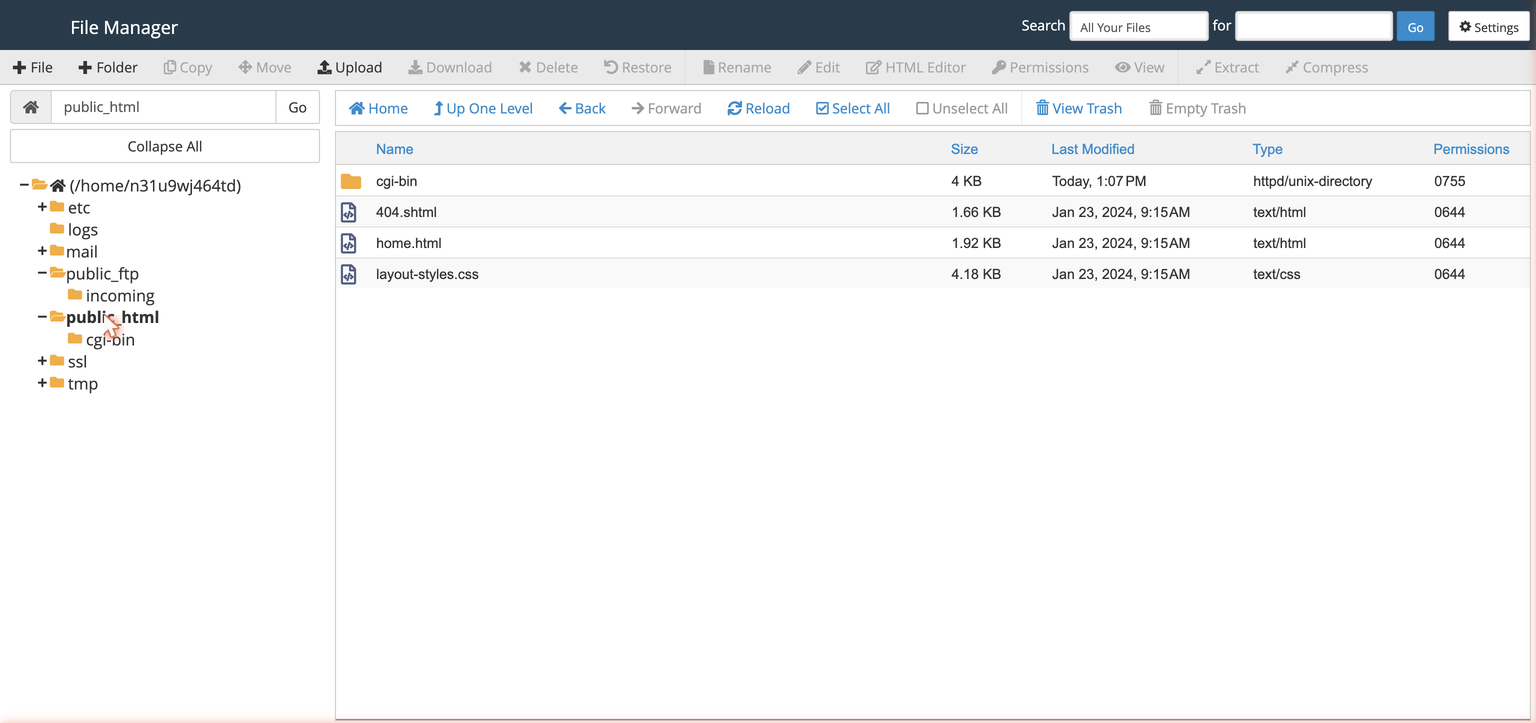
pagemotor.php, a lib folder, and a file called config-sample.php sitting in your site folder. (If extracting gave you a single folder called pagemotor instead, open it, select everything inside, choose Move and move it all into your site folder, then delete the empty folder and the zip.) Good. We use that sample file in step 3.2Create your database
PageMotor keeps your content in a database. GoDaddy's cPanel has a wizard that does the whole job in one pass.
- In cPanel, open the MySQL Database Wizard (under the Databases section).
- Name the database. Pick something distinctive like
yoursite_pagemotor: GoDaddy needs the name to be unique across their whole system, so a plain name likepagemotormay already be taken. - Create the database user. Let the password generator make a strong password, and write it down now.
- On the privileges screen, tick ALL PRIVILEGES and finish the wizard.
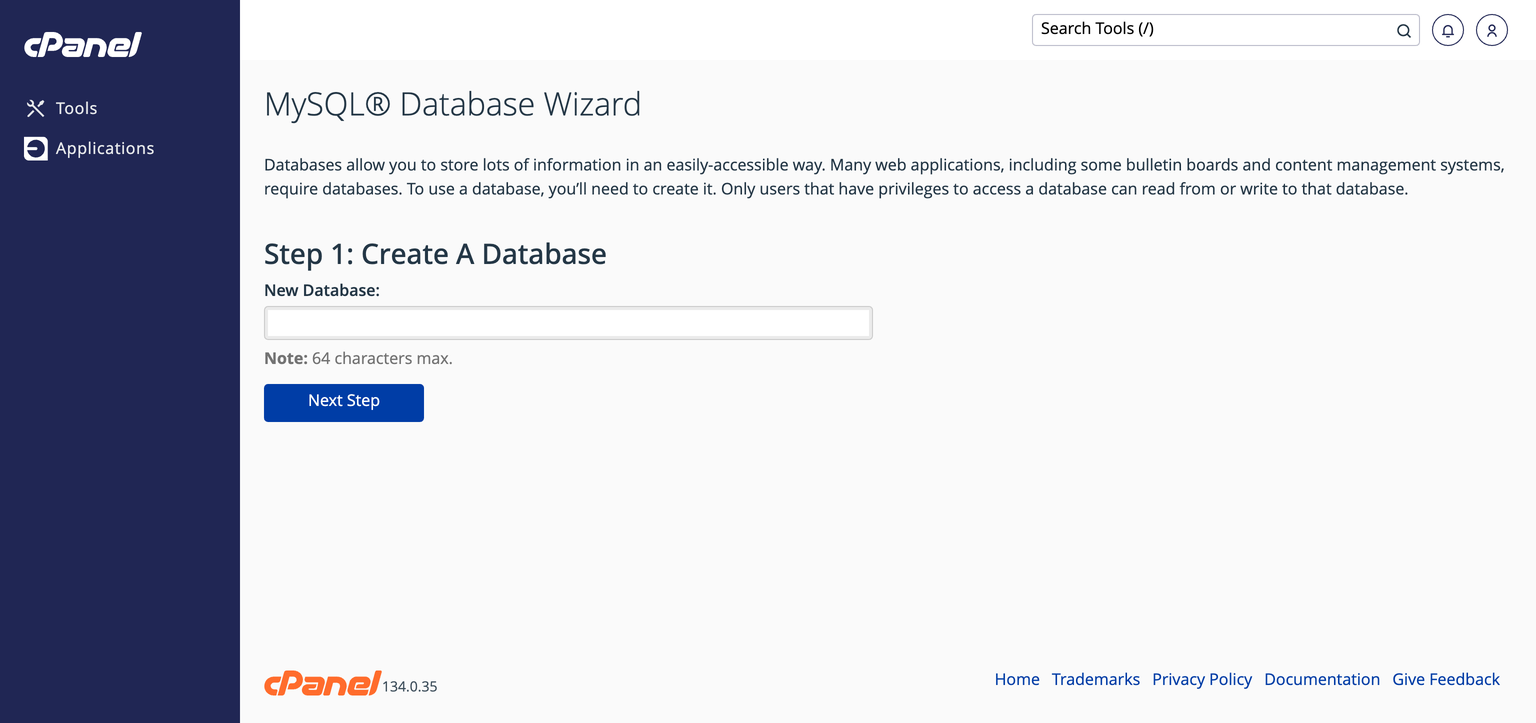
accountname_ before the name), then the full prefixed name is the real one. Either way, copy the final database name and username exactly as cPanel shows them at the end of the wizard. You will need those two plus the password in the next step.3Fill in config.php
This is the file that connects PageMotor to the database you just made.
yoursite.com/admin/ in your browser and it asks for the three database values and writes config.php itself. If the wizard appears, use it and jump to step 4. If you get a blank white page instead, that is not an error and nothing is broken: your download simply predates the wizard, so there is nothing at that address to answer you. Carry on with the hand-edit below, which still works on every release.- In File Manager, find
config-sample.phpnext topagemotor.php. - Right-click it and choose Rename. Rename it to exactly
config.php. This rename is the step that switches PageMotor on. - Right-click
config.phpand choose Edit. - Put your three values into
DB_NAME,DB_USERandDB_PASSWORD, exactly as the wizard showed them. Leave the rest as they are, then Save.
Here is what the database section of your config.php should look like once filled in. Edit the existing lines to match; you are changing three values, not pasting this block in:
// Database connection info:
define('DB_NAME', 'yoursite_pagemotor');    // exact name from the wizard
define('DB_USER', 'yoursite_pmuser');       // exact username from the wizard
define('DB_PASSWORD', 'your-strong-password');
define('DB_HOST', 'localhost');            // correct for GoDaddy's cPanel hosting
define('DB_CHARSET', '');
define('DB_COLLATE', '');
define('DB_TABLE_PREFIX', 'pm_');
define('DB_FLAGS', '');
define('PM_HTML_CHARSET', '');config.php (not config-sample.php, and not config.php.txt), and it must sit in the same folder as pagemotor.php.4Finish in your browser
- Go straight to
yoursite.com/admin/first. On this first visit PageMotor sets up its content and walks you into creating your admin user. Make the admin the first page you open on a brand-new install; current releases expect it, and it never hurts on older ones. - Then visit your website to see the front of the site.
Sending email on GoDaddy
Email is the one place GoDaddy genuinely differs from other hosts, so it is worth two minutes now. Contact forms, sign-ups and password resets all need a way to send mail.
The setup that works on GoDaddy: send through the server's own local mail system.
- In your mail plugin (EP Email, for example), set the transport to the local mail server: SMTP Host
localhost, Port25, Encryption none, Authentication none. There is no username or password, because the server trusts mail sent from itself. - Or, even simpler, choose the PHP mail() transport if your plugin offers it. It uses that same local mail system with nothing to configure.
- Send a test email to yourself. A local connection succeeds where the outside services timed out.
localhost: Test Connection passes and the email sends. Watch EP Email's own heads-up appear: the message is “sent”, but without DKIM, Gmail will silently drop it. That is the next thing to fix.Connecting Claude from this host
PageMotor speaks MCP natively, so once your site is up you can connect Claude Code or Claude.ai to it and let Claude build pages, manage content and run plugins for you. The connection asks a little more of a host than serving pages does. Four things must be true: the Authorization header must reach PHP intact, PageMotor must be allowed to answer its dynamic /.well-known/ routes itself, PHP's clock must be on UTC, and nothing may redirect Claude's POST to /mcp (the trailing-slash trap).
In practice, connecting takes about a minute. In a browser at claude.ai:
- Go to Customize → Connectors (straight there: claude.ai/customize/connectors).
- Click +, then Add custom connector.
- Give it any name you like. For the URL, use your site’s connector address:
https://your-site.com/mcp/, all lower case, trailing slash included. - Click Add. Claude sends you to a sign-in page on your own site. Log in with your PageMotor admin account and approve it.
- Start a new chat, click the + at the lower left of the message box, hover Connectors, and switch yours on.
Then simply talk to it: “what pages do I have”, or “create a contact page”. A free Claude account is enough and allows one custom connector; Pro, Max, Team and Enterprise allow more.
You do not need to test any of those requirements by hand. Install EP Host Check and read its MCP / Claude connection rows: since v1.2.0 its five checks cover all of this from your admin panel, no working Claude connection required, each with a plain fix. If a row fails, or the connection misbehaves anyway, the MCP troubleshooting guide has the exact diagnostic and fix for every verified cause.
Authorization header before PHP ever sees it. The fix is one line in your .htaccess, ready to paste in section 6 of the troubleshooting guide.If something is not working
Open these only if you hit them. Each one is quick.
I see "HTTP ERROR 500" or a blank white page
most commonAlmost always a config.php problem. Check three things:
- The file is named exactly
config.php(not stillconfig-sample.php, and notconfig.php.txt). - It is in the same folder as
pagemotor.php. - To see the real reason, open cPanel → Metrics → Errors. (On GoDaddy an
error_logfile does not appear in your site folder by itself, so Metrics → Errors is the place to look. If you need fuller PHP logging, GoDaddy's help article "Set up PHP error logging" shows how to switch it on.) If it saysconfig.php"No such file or directory", this is your fix.
The log says "MySQLi Connection Error"
Good news, that means config.php is now working and PageMotor reached the database step. It just could not log in. Re-check, against the exact names the wizard showed:
- The database name and username are copied exactly, including any prefix if your screen showed one.
- The password is correct.
- The user has ALL PRIVILEGES on the database (the wizard's last screen; you can re-check under cPanel → MySQL Databases).
- Ignore old tutorials telling you to hunt for a special GoDaddy MySQL host name. That advice is for their long-retired legacy hosting; on today's cPanel hosting it is simply
localhost.
I changed my PHP version and nothing changed
The PHP version is rarely the cause. A missing or misnamed config.php fails the same way on every version, so changing it makes no difference. Sort the config.php first. PageMotor is happy on modern PHP 8.x, and GoDaddy's current default is PHP 8.3. (On GoDaddy you can change the version from the hosting dashboard's Settings tab as well as inside cPanel.)
I cannot find config-sample.php
It ships inside the PageMotor download, right next to pagemotor.php. Two things to check: the files may have landed in a pagemotor subfolder when the zip extracted, in which case move everything in it up into your site folder (see the note in step 1); and if the folder is genuinely empty, the zip did not extract completely, so repeat step 1.
My SMTP email test "times out" (Mailgun, SendGrid, Brevo and the like)
GoDaddy-specific If a test connection to an outside mail service times out on port 587 and 465 (rather than rejecting your password), the cause is almost never your settings. GoDaddy blocks outbound SMTP to external mail servers on its shared cPanel hosting, as a matter of policy, and routes mail only through its own relay. A timeout, not a login error, is the giveaway: the connection never reaches the provider.
Your options on GoDaddy shared hosting:
- Use the server's own mail system. Set your mail host to
localhoston port25with no authentication and no encryption (or pick the PHP mail() transport, which does the same with nothing to configure). This is the reliable GoDaddy path, covered in full under Sending email on GoDaddy above. Remember to add SPF and DKIM for your domain, or Gmail will silently drop the mail. - Move to a VPS. On any VPS the SMTP ports are open and an external service like Mailgun works normally, with proper SPF/DKIM and real inbox placement. See Hosting PageMotor on Vultr.
(One older GoDaddy relay hostname, relay-hosting.secureserver.net, is widely quoted online but is now deprecated and tends to time out; use localhost instead.) This is the one real limit of GoDaddy shared hosting for a PageMotor site. Everything else in this guide works fine; only external SMTP is walled off.